
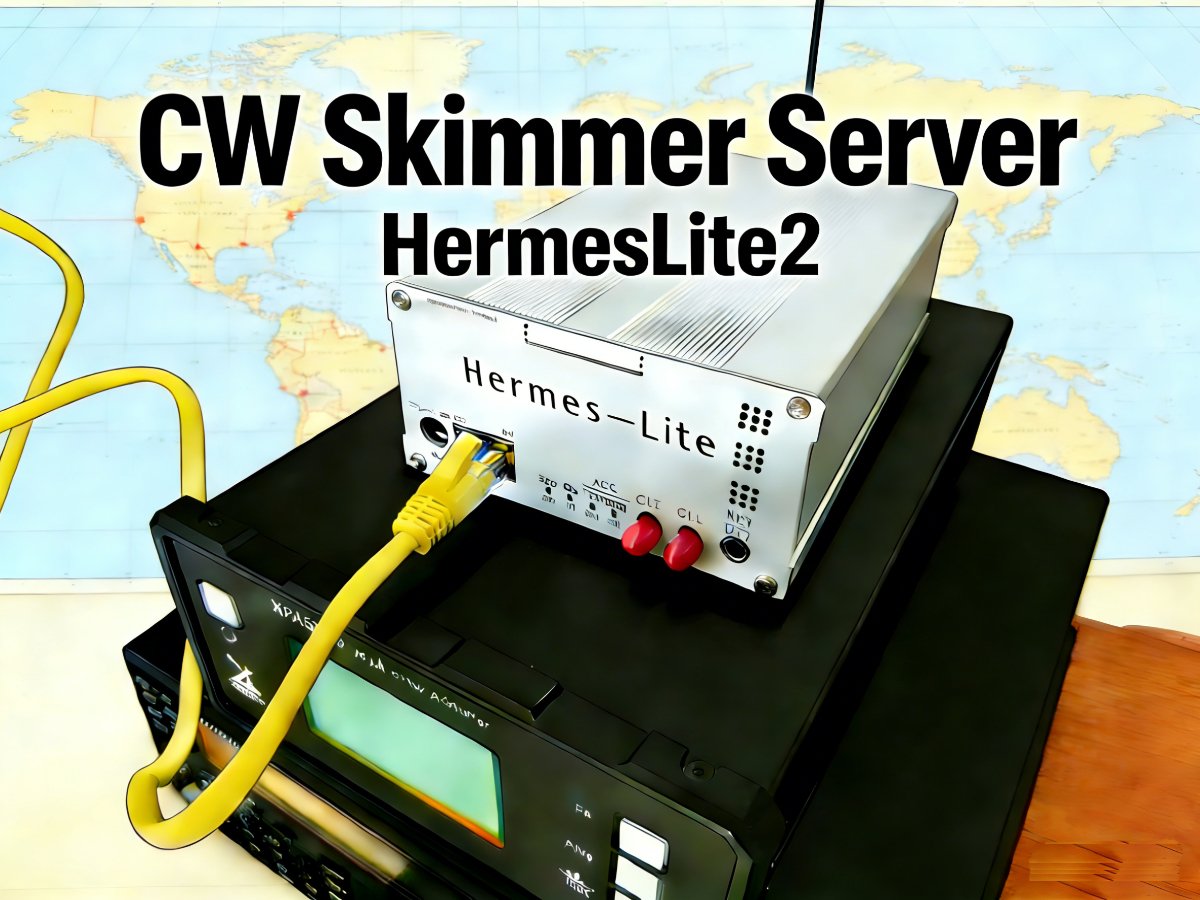
As the CQWW CW draws near, I would like to see how the HF propagation goes on based on my local area. I would also want to see whether my antenna could pick up some remote stations from the noisy RF. I am an apartment dweller, living in the downtown area of a city. I had my 4-band off-center fed dipole set up on the roof of the building, which is 33 floors above the ground. Although it is high enough, it still picks up the local RF noise a lot, mainly from the vehicles and dc-dc power supplies.
A skimmer server could be setup up on any computer running windows, and the radios could be a SDR with USB connection, or the Hermes-Lite2 alike with LAN connection. For simplicity, please keep your windows computer and your Hermes-Lite on the same local network. Here is my steps to set up a cw skimmer server with Hermes-Lite2 sdr.
Step 1: Install CW Skimmer Server
First, ensure you have the necessary software installed:
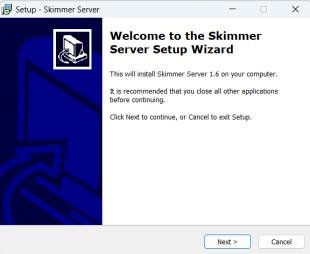
Download and install the Skim Server (not the standard CW Skimmer) from Afreet Software. The default installation location for the server files is typically C:\Program Files (x86)\Afreet\SkimSrv\ on a 64-bit Windows machine. Exit the skimmer server later once installed, as we need other files for the skimmer server to support Hermes-Lite2 sdr.
Step 2: Download Hermes-Lite 2 Gateware
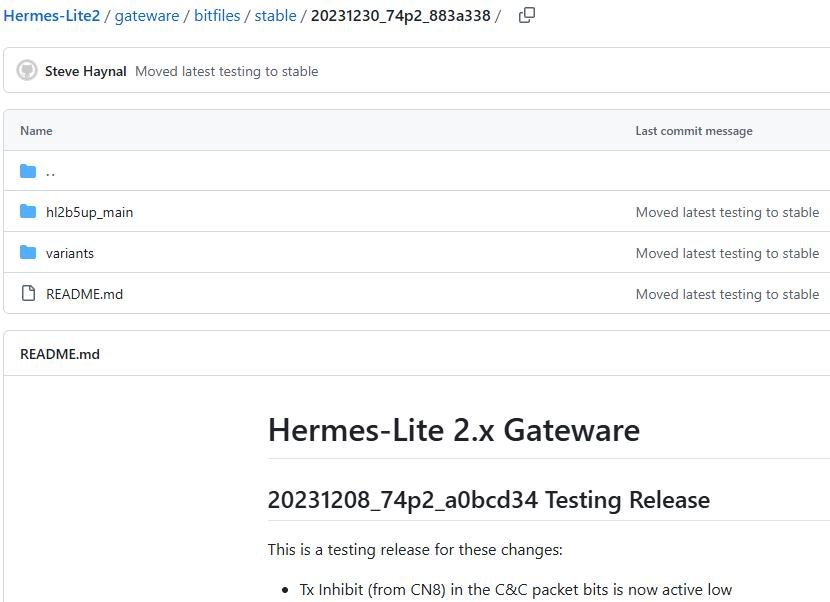
The HL2’s gateware (the configuration code for the FPGA) must be updated to a version that allows the WDT to be adjusted or disabled. Find the Latest Gateware: Locate the latest stable gateware files for the Hermes-Lite 2. You will need a version that supports WDT configuration, check here,
https://github.com/softerhardware/Hermes-Lite2/tree/master/gateware/bitfiles, for me, I used the 2023120874p2a0bcd34 version, which is “/stable/20231230_74p2_883a338/hl2b5up_mains”.
The gateware supports a standard 4-Slice of RX operation, that says the radio could do the RX simultaneously on 4 bands. There also has other gatewares(hl2b5up_cicrx.rbf) that could support 10-Slice RX, you could download for a try if you need a wide band skimming.
Step 3: Program the Gateware
Rename the downloaded rbf file to match the expected name for your programming method (e.g., hl2b5up_main.rbf for SDRConsole, if necessary).
Use SDRConsole: Run SDRConsole, define your radio, then start it. For SDRConsole, it is able to discover your Hermes-Lite2 by itself, but make sure your radio and your computer are in the same network.
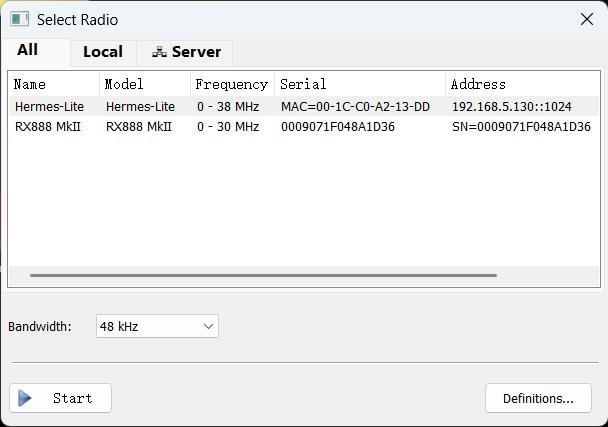
From the upper left corner of the program, click “select radio”, “Definitions”, “Search”, then click “Hermes-Lite”. It then start to search your Hermes-Lite2 on the local area network. Select Hermes_Lite once if finishes the search. Next, click “Start” to start your radio.
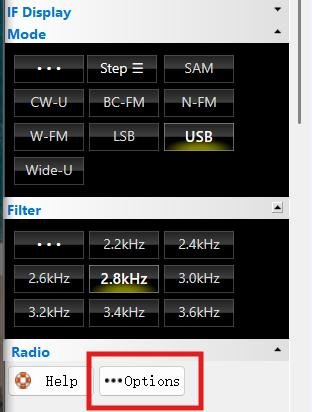
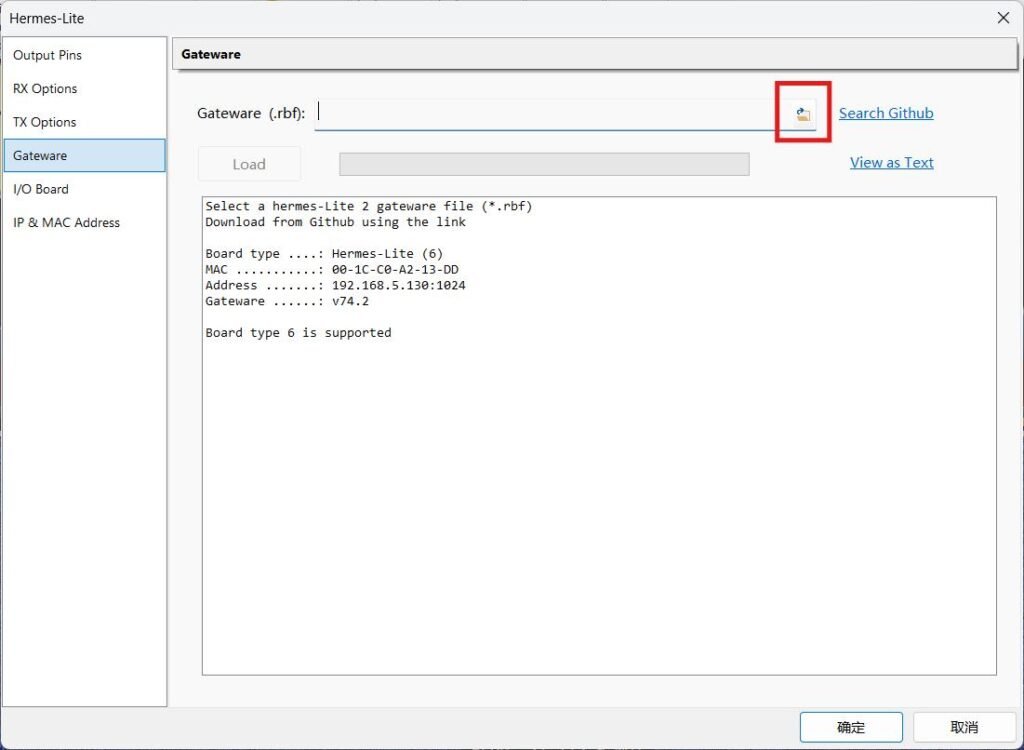
Now, from the left panel of the program, click “…Options”, it then will start a new window. From the left part of the new window, click “Gateware”, navigate to your rbf file by click the small “folder icon”. Finally, click “Load” to update your gateware.
Alternative (Quisk): From the Config dialogue, select your radio, and then choose “Program from RBF file”.
Power Cycle: Once the programming is complete, power cycle the Hermes-Lite 2 SDR.
Step 4: Install the Recompiled HermesIntf.dll
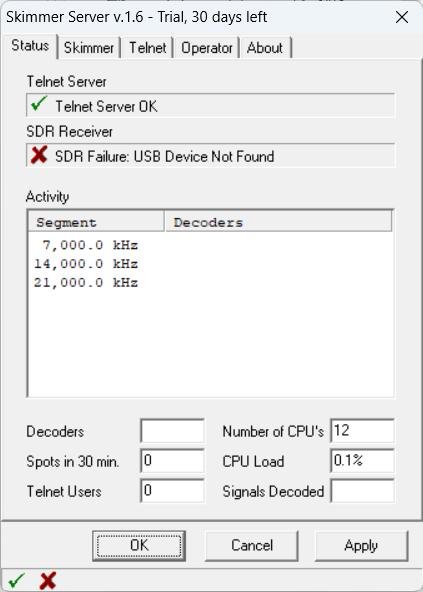
The original interface DLL does not utilize the new WDT configuration options in the updated gateware, leading to timeouts. So, we have to download the specially customized DLL file, otherwise it will prompt SDR Failure.
Download the Rebuilt DLL: Obtain a recompiled version of the DLL, such as the one made by KV4TT (often recommended for better WDT handling) or G7VKQ.
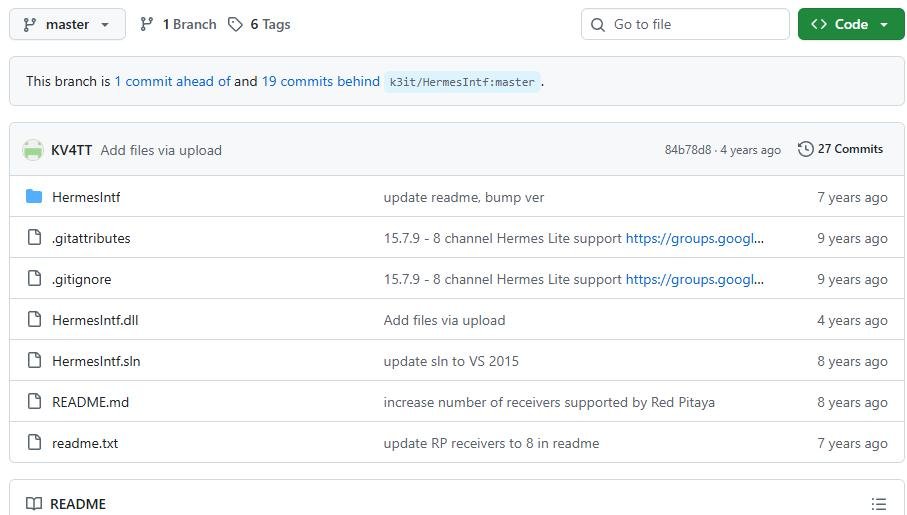
Replace the File: Unzip the download and copy the new HermesIntf.dll file into your SkimSrv installation folder (e.g., C:\Program Files (x86)\Afreet\SkimSrv\), overwriting the existing file.
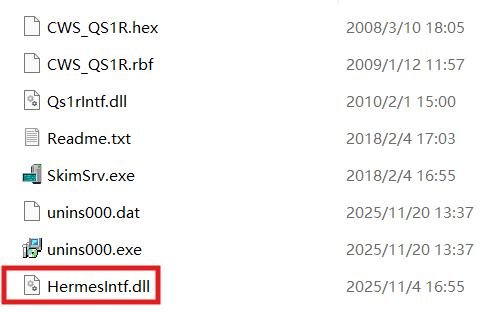
Step 5: Configure the Skim Server
With the gateware and DLL updated, you can now configure the server. Start the Skim Server application. It will typically run in your system tray. Click the SkimSrv icon in the system tray to open the settings dialogue. Navigate to the Skimmer tab and configure the following:
Define the sample rates. Set the frequencies you want to monitor. Crucially, set the number of receivers (slices) to match the gateware you flashed (e.g., 4 or 10 slices).
On the Operator tab, set your callsign, name, qth, and grid square. Click “Apply” and “OK” to exit the window.
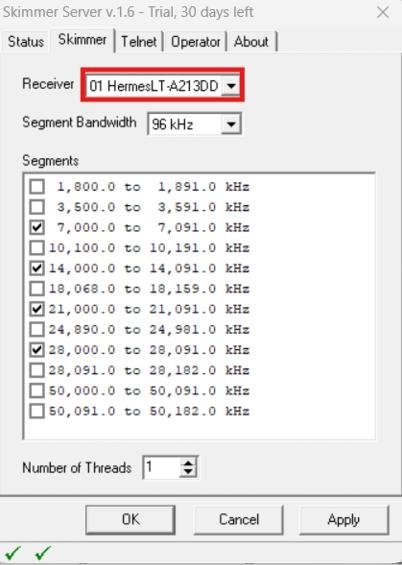
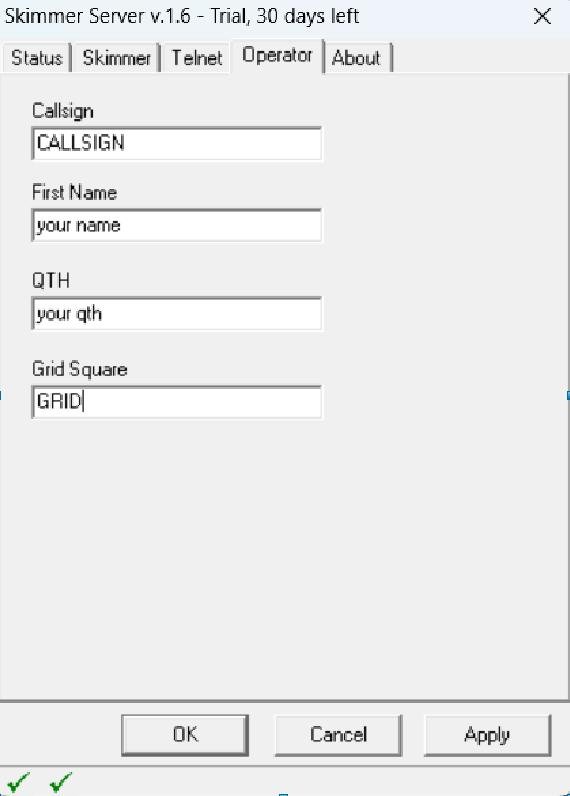
Step 6: Ready to Go
Your CW Skimmer Server is now running and receiving data from the Hermes-Lite2.
DX Cluster Connection: You can connect a Telnet program to localhost on port 7300 (the default port) to view the DX Cluster-style spotting information generated by the server.
PSKReporter Upload (Optional): To upload the spotted information to PSKReporter, use the CW Reporter application by N1DQ.
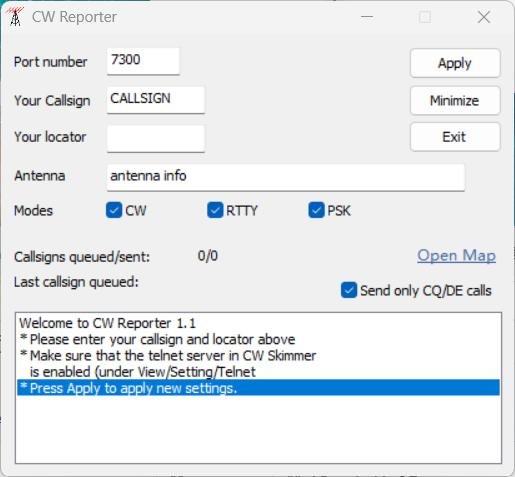
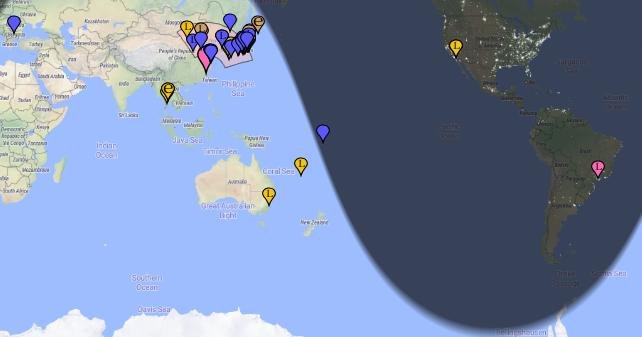
Calibration Note: Ensure your receiver’s frequency is accurately calibrated before uploading spots to avoid disseminating incorrect frequency information.